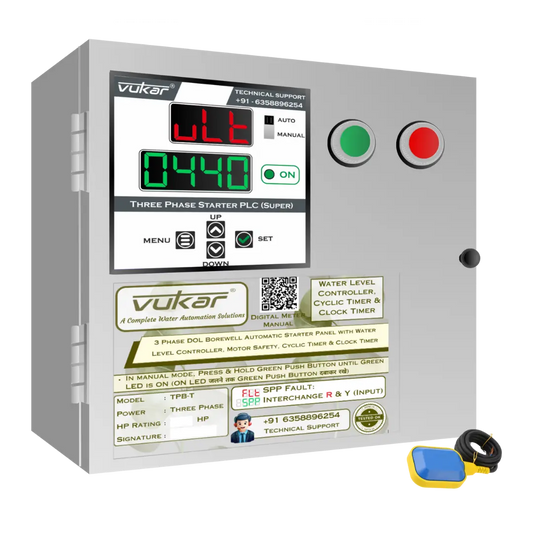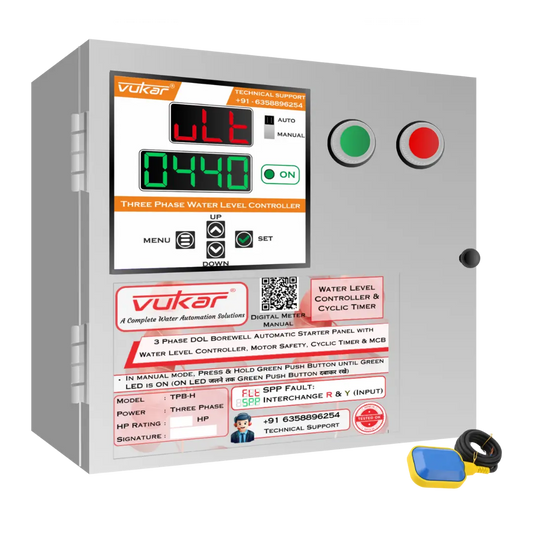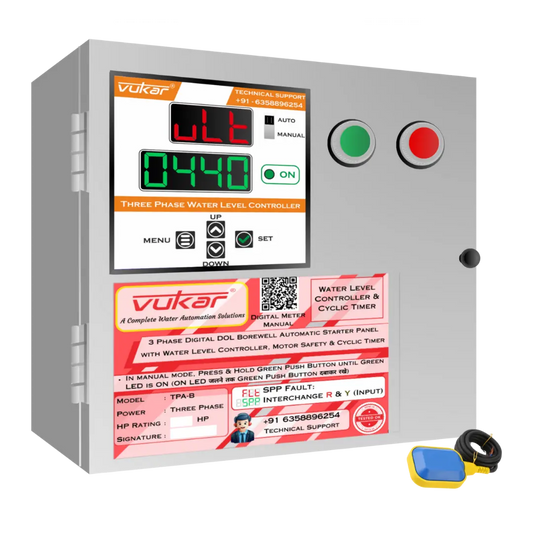

VUKAR Warranty Registration via WhatsApp
Mohit VekariaFor VUKAR warranty registration, send the 3-digit product code from your digital meter or a clear photo of it to VUKAR Technical Support on WhatsApp at +91 63588 96254. Enter the 4-digit password they send for your unit, then save and restart the device.
Send your product code on WhatsApp
These steps show the DM-Universal-V1 digital meter. If your meter has different buttons or shows a different sequence, send Support the model number from the product label.
Know your VUKAR digital meter

- Top display
- Shows the setting name as you move through the menu, then shows your 3-digit product code when you reach WRT.
- Bottom display
- Shows the current setting value. At WRT, use this row to enter the password.
- Setting buttons
- Use MENU and SET to open PRC. Use SET to move through the settings. Use UP or DOWN when you reach WRT and need to enter the password.
Open PRC and find the 3-digit product code
Press MENU + SET together and hold until PRC blinks 3 times. Release both buttons. The meter shows Mod.
Digital meter screens in order
The lower display values shown here are examples. Keep the values already on your meter. Use only SET to move through these screens.
-
ModAfter releasing MENU and SET, check that Mod appears on the top display. The bottom display shows your operating mode. Leave that mode as it is. Press SET for 1 second, then release it. The next screen is cts.

Example screen Mod / FAUt -
ctsCheck for cts on the top display. This is the CT setting for the current sensor. Leave the value on the bottom display as it is. Press SET for 1 second and release it to reach mem.

Example screen cts / 1202 -
memYou are now on mem, the memory setting. Keep the option currently shown on your meter. Press SET for 1 second and release it. The top display will show acl.

Example screen mem / No -
aclWhen the top display shows acl, the bottom display shows the current calibration value. The factory default is 0000. Keep the value already on your meter. Press SET for 1 second and release it to move to vcl.

Example screen acl / 0000 -
vclAt vcl, the bottom display shows the voltage calibration value. The factory default is 0000. Keep the value already on your meter. Press SET for 1 second, then release it. The next screen is olm.

Example screen vcl / 0000 -
olmCheck for olm, the overload restart setting. Keep the option already on the meter. Press SET for 1 second and release it. This opens WRT and the top display switches to a 3-digit number.

Example screen olm / No -
WRTStop when you see the 3-digit code on the top display. Take a clear photo or copy all three digits, including any zero at the start. The mockup uses 123 as the example code. The bottom display shows 0000 in this example before password entry. Wait for the password from VUKAR before you use the bottom display.

Example screen 123 / 0000
Send the code or photo on WhatsApp
Open the WhatsApp link above. Type the 3-digit code exactly as it appears on your meter, or attach a clear photo that shows the code on the top display. Technical Support will reply with a unique password for your unit.
Hello VUKAR, please send the warranty registration password for my product.
My 3-digit product code (or photo attached) ___

VUKAR digital panel meters
Find your digital meter model in the VUKAR range.
Enter the 4-digit password and press SET
At WRT, use UP or DOWN to enter the 4-digit password on the bottom display, then compare all four digits with VUKAR’s WhatsApp reply. Press SET to save.
Use only the password VUKAR sends for that unit. Seven incorrect entries permanently lock the device. If the first entry fails, send Support a photo of the display and wait for their reply before trying again.

Switch the device off for 30 seconds
After pressing SET, switch off the device. Wait 30 seconds, then switch it back on. The device completes registration and returns to its usual scrolling display and normal operation.